| Threat or habit | What the guidance says | Planning use |
|---|---|---|
| Phishing | Scams trick users into revealing account information by email, phone or text | Treat every channel as a possible route. Verify official-looking messages that demand urgent action before you respond. |
| Reused passwords | Attackers exploit reused passwords, so each site needs its own | Fix reuse first, because one leaked password then unlocks other accounts. |
| Guessable passwords | Unique, complex passphrases defend against dictionary and brute-force attacks | Avoid common words and personal information in anything you choose yourself. |
| Exposed information | Credentials can be compromised through shoulder surfing or details you post about yourself online | Watch who can see your screen and what you share publicly. |
| Out-of-date software | Updates close security holes automatically | Turn on automatic updates on every platform you use. |
| Malicious software | Anti-malware stops software that damages files or takes over a system | Run anti-malware on computers as a baseline layer. |
| Public Wi-Fi | Avoid sensitive transactions such as banking on public Wi-Fi | Keep banking for a trusted connection. |
| Single-step sign-in | Two-factor authentication asks for a password and then another form of ID, usually a one-time code sent by email or text | Switch it on for the accounts you can least afford to lose. |
These figures and conditions come from UC Berkeley’s security basics guidance and a credit union’s security article.
Learning how to protect yourself from hackers starts with a short list of habits: a unique password for every site, a second sign-in step, automatic updates, and checking urgent messages before you act on them.
If you would rather skip passwords altogether, what is a passkey explains the passwordless option in detail. The sections below take the habits in order of impact, then compare the tools that support them.
Choosing where to start
Your starting point depends on which weakness is most likely to hurt you today. Most people get the biggest return from account protection, because a stolen login gives an attacker direct access without any need to break into a device.
- You reuse passwords: start with the password section below. Reuse lets one compromised site open others, so this fix outranks everything else.
- Your email or bank login relies on a password alone: go straight to the two-factor authentication section. Email matters most because it is usually where other accounts send their reset messages.
- You answer messages quickly: read the phishing section first. Speed is exactly what a scam depends on.
- Your devices ignore update prompts: switch on automatic updates and anti-malware, covered in the device section.
- You work from cafés, airports or hotels: the public Wi-Fi and VPN guidance matters most for you.
None of these steps demands technical skill. Each is a settings change or a verification habit, and together they cover the routes attackers use most.
Common attack routes
Attackers rarely need advanced techniques against ordinary users. The documented routes lean on trust, repetition and unpatched software, and each one maps to a specific defence further down this page.
Phishing by email, phone and text
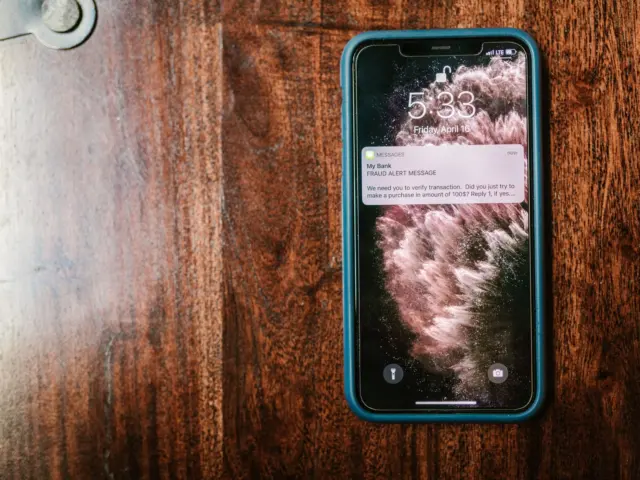
Phishing is a scam that tricks you into revealing account information. According to UC Berkeley’s security basics, it can arrive by email, phone or text, so a clean inbox does not mean you are safe from it. Business-focused guidance from Business News Daily adds that more sophisticated phishing emails mimic friends, associates and trusted businesses such as banks. That means a familiar name in the sender field is not proof of anything.
For worked cases, Phishing Email Examples: Real Scams, Red Flags, And How To Stop Them In 2026 – Cubeguard shows what these messages look like in practice. The mechanics behind them are in How Phishing Emails Work: A Clear, Practical Guide To Spot, Stop, And Survive Scams In 2026 – Cubeguard.
Reused passwords and exposed details
Berkeley’s guidance states that attackers exploit reused passwords. A password stolen from a minor site then works on a bank or email account that shares it. The same source notes that credentials can be compromised without any hacking software. Shoulder surfing, meaning someone watching you type, and personal information you post online can both give an attacker what they need. Protection here is partly behavioural: shield your screen in public and think about what your public profiles reveal.
Malware and ransomware
Malicious software damages files or takes over a system, and ransomware is the variety that locks your data until someone pays. A managed-services provider’s security tips describe ransomware as one of the most common cyber threats. No single prevalence figure is supplied in the guidance used here, so treat that description as a ranking rather than a statistic. Two guides go deeper: How Ransomware Works: Inside Attacks, Payments, and Practical Defenses (2026 Guide) – Cubeguard and Ransomware vs Malware: How They Differ And How To Protect Yourself In 2026 – Cubeguard. For prevention steps, see How To Prevent Ransomware Attacks: A Practical 2026 Guide To Protecting Your Data – Cubeguard.
Passwords and account protection
The core answer to how you protect your accounts from being hacked is that every account needs its own strong credential, and the most important accounts need more than a credential. This section covers the credential; the next covers the extra layer.
Unique passphrases
Berkeley recommends unique, complex passphrases to defend against dictionary and brute-force attacks, and says to avoid common words and personal information. Uniqueness matters as much as complexity. A strong password reused on several sites fails the moment one of them is breached, because reuse is the exact weakness attackers exploit. Business News Daily gives a minimum for password composition: at least eight characters, mixing numbers, uppercase and lowercase letters, and symbols. Read that as a floor, not a goal. A passphrase you cannot guess or reuse is better than a minimum-length string, and the guide on how to create a strong password shows how to build one you can still remember.
Password managers
Nobody can remember a unique, complex password for every site, which is why a password manager is the practical answer. A credit union’s security article explains that these apps store your passwords so you can retrieve them easily and can also generate complex ones. A security expert quoted by NPR on January 21, 2026 put the benefit simply: the manager makes all of these passwords for you and fills them in for you. That convenience is what makes unique passwords realistic.
Business News Daily names Dashlane, Sticky Password, LastPass and Password Boss as examples of password managers. Those names illustrate the category rather than rank it. The comparison table later in this guide shows how a manager sits beside the other tools, and these deeper guides help with choosing and trusting one:
- Starting out: Best Password Manager Apps in 2026: Secure, Simple, and Private Options Reviewed – Cubeguard reviews options side by side.
- Worried about safety: Is It Safe to Use a Password Manager? A Practical Guide for 2026 – Cubeguard addresses the trust question directly.
- Helping an older relative: Best Password Managers For Seniors: Simple, Secure, And Easy To Use In 2026 – Cubeguard focuses on ease of use.
- Preferring to keep data off the cloud: Self-Hosted Password Manager: How To Secure Your Digital Life Without Relying On Cloud Services (2026 Guide) – Cubeguard covers the self-managed route.
Passkeys as a password replacement
The NPR interview describes a passkey as a way to log in without needing a username, and as a key shared between a website and your device. The expert’s view was that passkeys are, for now, harder to steal than passwords because of encryption. Treat that as one expert’s assessment on a given date, not a permanent guarantee. Use passkeys where a site offers them, and keep a password manager for the many sites that still require passwords.

Two-factor authentication
Two-factor authentication means a site asks for your password and then another form of ID to confirm who you are. The credit union article notes that the second method is usually a one-time code sent by email or text. The value is that a stolen password alone no longer opens the account.
Choosing a second factor
Not every second factor is equally strong. A managed-services provider advises avoiding SMS-based multi-factor authentication where possible and using authentication apps instead. When a site offers both, pick the app. When only text or email codes are offered, those still add a barrier a password-only login lacks, so enable them rather than going without. Passkeys sit in a different category: the NPR expert explained that they verify through your device’s own unlock method, whether a passcode, your face or your fingerprint. Real-world variations are laid out in Two-Factor Authentication Examples: 7 Real-World Methods to Secure Your Accounts in 2026 – Cubeguard.
Setup steps
Each site words its settings differently, but the process follows the same shape. Work through your accounts in order of importance, starting with email and banking.
- Open the account’s security or sign-in settings and look for two-factor, two-step or multi-factor authentication.
- Select the method. Choose an authentication app if offered, because SMS is the method to avoid where possible. Choose a one-time code by text or email only when nothing stronger is available.
- Confirm the method works by completing the code or prompt the site asks for before you leave the settings page.
- Check any passkey option and switch it on where you want to sign in with your device’s unlock method.
- Repeat for the next account until your most important logins all ask for a second factor.
Once your main accounts are covered, extend the same habit to social media and shopping accounts, which are easy to overlook.
Spotting phishing messages
The best way to spot a phishing email is to stop judging how convincing it looks and start verifying whether it is real. Berkeley’s advice is to always verify emails that seem official and ask for urgent action. Urgency is the lever scammers pull, so a demand to act quickly is a reason to slow down.
Checks for emails
- Sender address: the managed-services provider notes that spoofed emails often have slight variations, so read the address itself rather than the display name.
- Attachments: the credit union’s guidance is never to open an email attachment from someone you do not know.
- Impersonated contacts: since phishing emails can mimic friends, associates and banks, confirm unexpected requests through a separate channel you already trust, such as a number you have used before.
- Urgent demands: verify before acting, rather than using the links or numbers the message supplies.
Texts and calls
Because phishing also arrives by phone and text, the same verification habit applies away from your inbox. The guide on what is smishing explains how text-message scams work and how to respond, and Toll Scam Texts: How To Spot, Stop, And Report Them In 2026 – Cubeguard covers one common example in detail. If a scary pop-up claims your phone is compromised, This “Your Phone Has Been Hacked” Pop‑Up Appeared — What To Do Now (2026 Guide) – Cubeguard walks through the response.
Securing your devices and connections
Account protection is only half the job, because a compromised device can capture whatever you type. Three controls cover most of the device side: updates, anti-malware and care on public networks.
Automatic updates
Berkeley’s guidance explains that updating software closes security holes automatically so you do not have to think about it. Enable automatic updates on each platform you use, including phone, computer and browser. This is the lowest-effort control on the page, because once it is on, it needs no further attention.
Do you need antivirus software?
Yes, you should run anti-malware or antivirus software. Berkeley says anti-malware stops malicious software from damaging your files or taking over your system. Business News Daily goes further and calls antivirus software a small business cybersecurity necessity, noting that it provides real-time threat detection and that free and legal options exist. Cost is therefore not a strong reason to go without. The software does not replace the other habits here, though. It addresses malicious programs, whereas phishing and password reuse succeed by persuading you or exploiting your choices.
Public Wi-Fi and VPNs
Berkeley’s advice is to avoid sensitive transactions, such as banking, on public Wi-Fi. A VPN is the tool most often paired with that problem. The managed-services provider describes it as a way to encrypt traffic when connecting remotely. A VPN suits you if you regularly connect from networks you do not control, such as hotels or shared workspaces. It addresses the connection only, so it does nothing about a scam message you choose to act on. For banking, the simplest rule is still to wait for a trusted connection.
Comparing the main protection tools
The tools above overlap less than they appear to. Each guards a different weak point, and the table below shows which tool answers which problem.
| Tool | What it does | Best suited to | Condition to keep in mind |
|---|---|---|---|
| Password manager | Makes passwords and fills them in for you | Anyone with more accounts than they can memorise | Still needs a strong credential protecting the manager itself |
| Passkey | A key shared between a website and your device, verified by passcode, face or fingerprint | Sites that already offer passkey sign-in | The expert’s judgement that passkeys are harder to steal applies for now |
| Authentication app | Supplies the second factor in place of SMS codes | Accounts where SMS codes are the alternative | Recommended where possible, so fall back to text only if nothing else is offered |
| VPN | Encrypts traffic when connecting remotely | Frequent use of networks you do not control | Protects the connection, not your choices about messages |
The password manager and passkey details come from the NPR interview with a security expert, and the authentication app and VPN details from a managed-services provider’s security tips.
How to combine them
A sensible layering for an everyday user looks like this. Use a password manager for all passwords, add an authentication app wherever a site supports one, use passkeys where offered, and run anti-malware on your computer. Add a VPN if your routine involves public networks. Skipping the manager is the most costly omission, because without it people drift back to reuse.
If something has already gone wrong
Prevention reduces the odds but cannot remove them, so know where to turn if you suspect a compromise. Treat any unexpected sign-in alert, locked account or sudden pop-up claim as something to investigate promptly rather than ignore.
- Computer behaving oddly: follow Your Computer Was Hacked: A Practical Step-By-Step Recovery Plan For 2026 – Cubeguard.
- Phone behaving oddly: use My Phone Was Hacked — What To Do Now: A Practical 2026 Recovery Checklist – Cubeguard.
In both cases, the protections above make recovery easier. Unique passwords limit how far a single leak spreads, and a second sign-in factor keeps a stolen password from opening the account on its own.
A starter checklist
Work through these in order; each step takes the most important protection first.
- Install a password manager and begin replacing reused passwords, starting with email and banking.
- Turn on two-factor authentication for those same accounts, choosing an authentication app over SMS where you can.
- Enable automatic updates on every device.
- Run anti-malware on your computer.
- Adopt a verification habit for urgent messages: confirm through a channel you already trust before acting.
- Move sensitive transactions off public Wi-Fi, or add a VPN if you cannot avoid it.
Revisit the list when you open a new account or change devices. The habits matter more than any single product.
Frequently asked questions
Is a password manager worth using?
Yes for most people. It stores your passwords, can generate complex ones and fills them in, which makes unique passwords for every site practical.
Should I use text message codes for two-factor authentication?
Use them only when nothing better is offered. Authentication apps are recommended instead of SMS where possible, but a text code still beats a password alone.
Can a VPN stop me being hacked?
Not on its own. A VPN encrypts traffic on remote connections, which helps on networks you do not control, but it works alongside passwords, updates and careful handling of messages.
What should I do with an attachment from someone I do not know?
Do not open it. Never opening an email attachment from an unknown sender is a standard precaution, since attachments are a common way to deliver malicious software.