What to do if your computer is hacked: disconnect it from every network first, then change passwords from a different, safe device, clean or reinstall the system, and finally harden your accounts. Order matters because cleanup comes after containment.
This plan runs from containment to hardening. For prevention beyond recovery, read how to protect yourself from hackers.
Why containment comes before cleanup
Attackers commonly install malware on a computer to steal valuable information such as passwords, according to HP’s security guidance. While the machine stays online, that stolen data can keep leaving it and the attacker may keep remote access. Cutting the connection stops both, which is why Microsoft’s support guidance and the New York State Office of Information Technology Services both put disconnecting at the start.
The same logic explains the rest of the sequence. If you change passwords on the compromised computer, a keylogger can capture the new ones. If you delete a suspicious file by hand, malware often hides in several locations or regenerates from fragments left on the drive. Each later step exists to avoid one of those traps, so skipping ahead tends to undo your own work.
The recovery order at a glance
| Stage | Action | Planning use |
|---|---|---|
| Contain | Unplug the ethernet cable or turn off Wi-Fi and cellular data | Do this before anything else, even before you investigate |
| Recover accounts | Change passwords from a different, safe device, starting with email, banking and other critical accounts | Email first, because it can reset almost everything else |
| Secure sign-in | Enable multifactor authentication on all accounts | Do it as you reset each account, not as a later project |
| Rebuild | Have a local technician wipe and reinstall Windows if remote access tools may be installed | Choose this over manual cleanup when you cannot rule out hidden access |
| Harden | Update all software, browsers and operating systems to the latest versions | Close the gaps once the machine is clean |
The sequence draws on guidance from New York State ITS and Microsoft Learn.
First moves: contain the machine
Work through these actions in order. Each takes only a few minutes, and none requires technical skill.
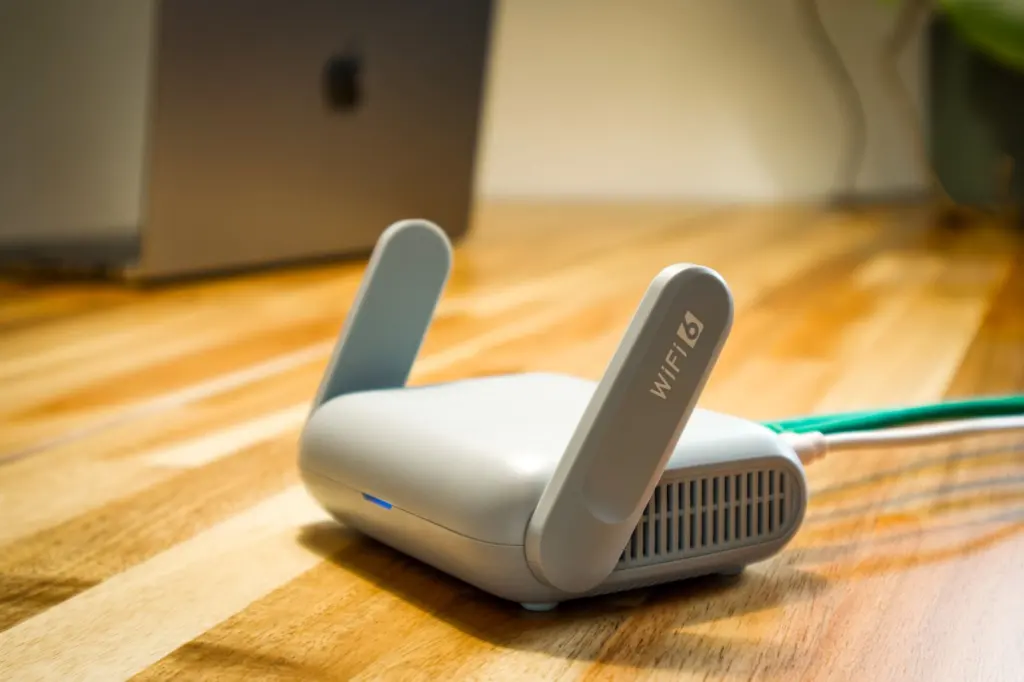
- Cut the connection. Unplug the ethernet cable, turn off Wi-Fi and cellular data, and disable Bluetooth. Do this before any other step.
- Hold off on restarting. If ransomware is involved, a reboot can trigger file encryption and cause permanent data loss. Take screenshots of ransom notes or odd screens first.
- Switch to a clean device. Use a phone or another computer you trust for everything that follows. The infected computer stays offline until it is cleaned.
If you cannot tell whether the router itself is part of the problem, disconnecting the computer from it is still the safe default. The computer is the part you control.
Confirming the hack
You do not need certainty to disconnect, but a few signs show that the suspicion is justified. They tend to appear in accounts before the computer misbehaves.
- Password trouble. A password stops working even though you are certain it is right, or you receive login alerts or reset emails you did not request, as New York State ITS lists.
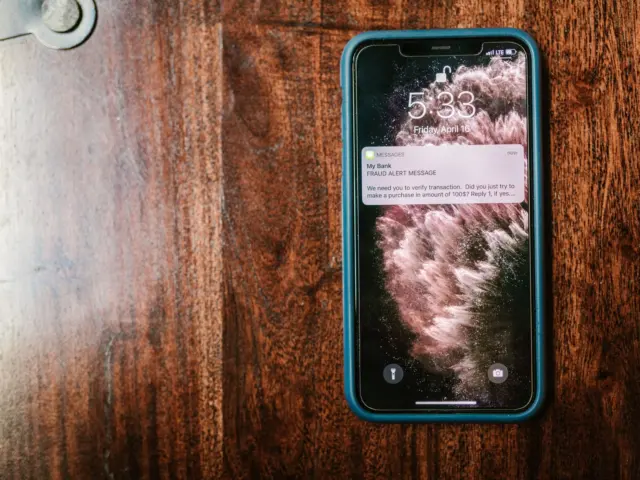
- Money signs. Suspicious charges appear on a bank account or credit card.
- Messages about changes you did not make. HP notes that the first indication is often receiving such messages.
If the trouble began after you tapped a link in a text, Toll Scam Texts: How To Spot, Stop, And Report Them In 2026 – Cubeguard explains how to recognise and report those messages. Check every account from the clean device, not the suspect one.
Recovering accounts
Recover accounts from a different, safe device, never from the compromised computer. Microsoft’s support advice is to change passwords from a safe device, and the logic is simple: anything typed on the infected machine may be captured.
Password reset order
Start with email, banking and other critical accounts, then move to everything else. Email goes first because password-reset links for other services usually land there. Each new password should be unique and stored securely, so a single leak never opens a second account.
Two-factor authentication
Turn on multifactor authentication on all accounts as you reset them. This keeps a stolen password from being enough on its own. A reset without it only protects you until the next leak.
Accounts you have been locked out of
If an attacker has already changed your credentials, use the platform’s recovery route. All social media companies have procedures for reporting stolen credentials and resetting passwords, and they typically reset access once you prove ownership. Do this from the clean device too.
Cleaning the computer and restoring files
Once your accounts are safe, decide between scanning and a full rebuild. The choice depends on how confident you can be that nothing is hidden.
Scan first if the signs were mild
Update the security program so it has the latest virus signatures, then run a full computer scan. HP specifies that the scan should include all static storage devices, including the primary hard disk, and removable storage as well. Scanning is a reasonable first move, but a clean result does not prove the machine is trustworthy, because malware can regenerate after you remove what the scan found.
Reinstall when access may remain
When remote access tools may be installed, Microsoft says it is safest to have a local computer technician fully wipe and reinstall Windows. For deeper infections, the general approach is to wipe the drive and reinstall the operating system from official media, then restore documents and media only. Leaving programs and settings behind is what keeps old malware out.
Back up before you wipe
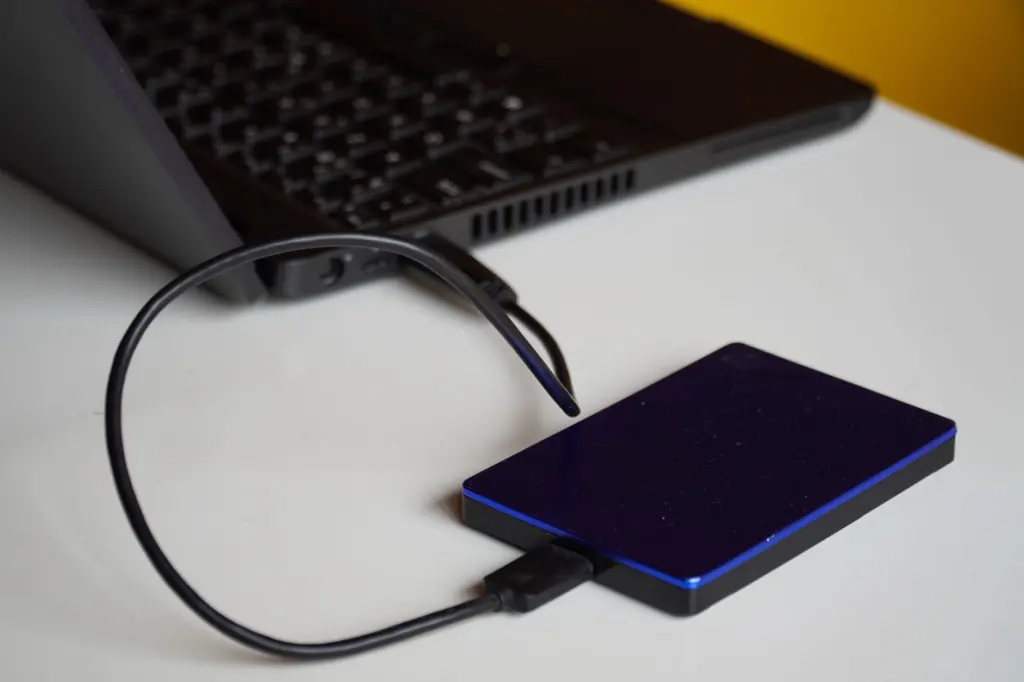
Back up your files first, ideally to an external drive or cloud storage that was not connected when the hack occurred. A drive that was plugged in during the incident could carry the problem back.
Hardening afterwards
With a clean system, update all software, browsers and operating systems on your devices to the latest versions, as New York State ITS advises. Unpatched software is the gap you are closing.
Create strong, unique passwords for every account and store them in a secure place. If you would rather keep that vault under your own control, Self-Hosted Password Manager: How To Secure Your Digital Life Without Relying On Cloud Services (2026 Guide) – Cubeguard covers a self-hosted approach. Restore your backed-up files last, and keep watching your accounts after you are back online.
Frequently asked questions
Is antivirus alone enough to deal with a hacked computer?
Antivirus is the minimum, not the whole answer. HP recommends a professional security product that includes antivirus software as a minimum, and scanning does not replace changing passwords from a safe device or reinstalling when remote access is possible.
Should I trust a pop-up or phone call saying my PC is compromised?
No. Microsoft states it will never call you or ask you to call them because your PC was compromised, and pop-ups showing a phone number are a scam tactic. Do not call the number.
How long should I keep monitoring my accounts?
Monitor your accounts closely for at least 90 days after the incident, watching for unfamiliar logins, reset emails and charges.
Is a text-message code good enough for two-factor authentication?
It is better than nothing, but SMS codes can be intercepted through SIM-swapping attacks, so an authenticator app is the stronger choice where a service offers one.