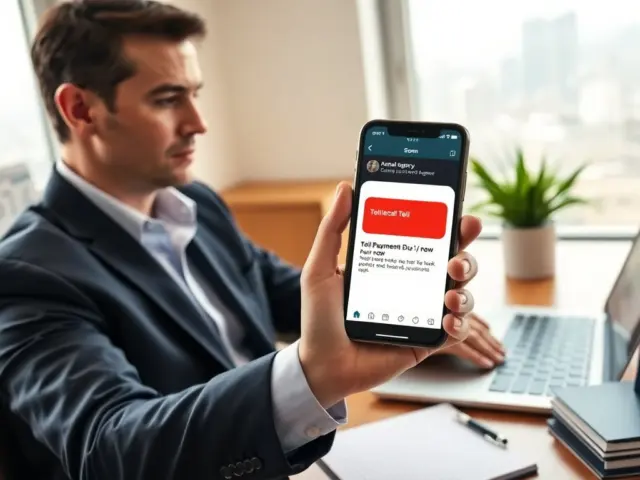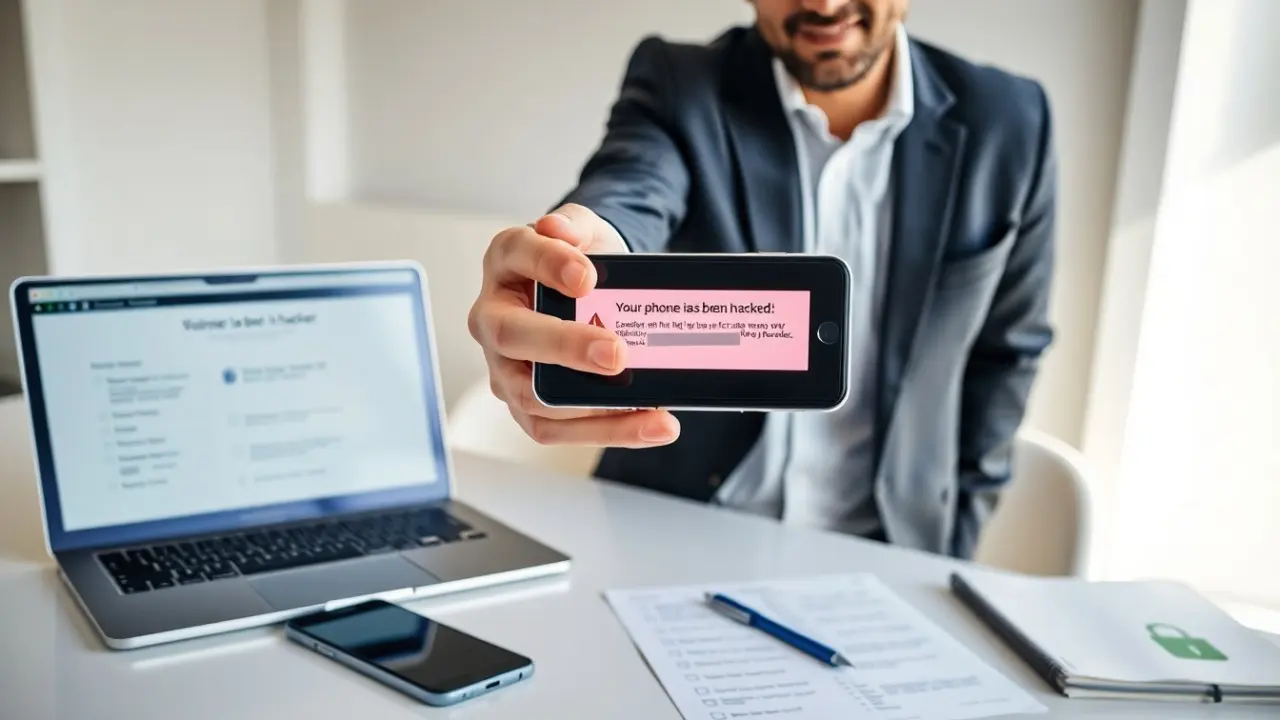
A user saw a “your phone has been hacked pop up” and panicked. The pop up claimed urgent action and pushed links. The user must act calmly. This guide shows clear steps to verify the message, remove threats, and secure the device. The steps fit Android and iPhone and use simple tools anyone can follow.
Key Takeaways
- “Your phone has been hacked pop up” messages are usually scams designed to trick users into giving personal data or money.
- Stop interacting with the pop up immediately and close or force-stop the browser app to avoid installing malware or visiting phishing sites.
- Disconnect your phone from Wi-Fi and mobile data, and enable airplane mode to prevent further remote access or data theft.
- Check your phone for suspicious apps and configurations and clear browser data to remove malicious scripts causing fake hack alerts.
- Use official app stores, keep your device and apps updated, limit app permissions, and enable browser pop-up blockers to prevent future fake hack warnings.
- Report recurring “your phone has been hacked pop up” scams to your device maker, app stores, and authorities to help protect others.
Why Those Pop‑Ups Appear — Scam, Malware, Or False Alarm?
Scammers show a “your phone has been hacked pop up” to scare people. The pop up uses loud language, countdown timers, and fake system messages. The pop up tries to get the user to call a number, download an app, or enter payment data. A legitimate system alert rarely asks for a phone call or a payment.
Malicious websites can trigger a persistent pop up. The site runs scripts that lock the browser and show fake warnings. Ad networks can also deliver harmful ads that display the “your phone has been hacked pop up.” An installed app with ad injection can cause the same effect.
Real malware can exist too. A malicious app can run background services, send data, and display alerts. But, most “your phone has been hacked pop up” messages are social-engineering scams that try to extract money or credentials. The user must treat each pop up as a possible scam until proven otherwise.
Step‑By‑Step: Verify, Secure, And Remove Threats From Your Phone
The user must stop interacting with the pop up. Tapping links can install apps or open phishing pages. The user should close the tab or force‑close the browser app first. On Android, the user can open Settings and force stop the browser. On iPhone, the user can swipe the browser off the app switcher.
Next, the user should disconnect the phone from Wi‑Fi and mobile data. The user should also enable airplane mode. Cutting network access prevents remote commands and stops data exfiltration. The user should not call numbers shown in the pop up.
The user should record details about the pop up. The user can take a screenshot for later reference. The user should note the exact wording and any phone numbers or URLs shown. This information helps technicians or security forums that the user may consult.
If the user suspects account compromise, the user should change passwords from a separate device. The user must use a clean computer or another phone. The user should enable two‑factor authentication on key accounts like email and banking.
Check For Malware, Harmful Apps, And Browser Hijacks
The user should scan the phone for harmful apps. On Android, the user should open Settings, then Apps, and look for unknown or recently installed apps. The user should uninstall suspicious apps. The user should check app permissions for any app that can draw over other apps or access SMS.
On iPhone, the user should review installed apps on the home screen and in Settings. The user should remove any unfamiliar app. iOS restricts background behavior, but malicious configuration profiles or shortcuts can still cause problems. The user should check Settings > General > VPN & Device Management for unknown profiles and remove them.
The user should clear browser data. In Chrome, the user should open Settings > Privacy > Clear browsing data and remove cookies and cached files. In Safari, the user should go to Settings > Safari > Clear History and Website Data. This step removes persistent scripts that may trigger the “your phone has been hacked pop up.”
If the pop up persists after cleanups, the user should boot the phone into safe mode on Android to isolate third‑party apps. The user can then uninstall suspect apps. If the user still sees alerts, a factory reset may be necessary. The user must back up important files first and use a clean backup.
Prevent Future Fake Hack Alerts And Strengthen Privacy
The user should install apps from official stores only. They should avoid unknown APKs or links that promise quick fixes. The user should use a reputable mobile security app for regular scans. The user should keep the phone operating system and apps up to date to patch vulnerabilities.
The user should limit app permissions. The user should grant only needed permissions and revoke anything unnecessary. The user should review permissions in Settings every month. The user should also avoid public Wi‑Fi for sensitive tasks. The user should use a VPN when they must use an open network.
The user should tighten browser settings. The user should disable pop ups in browser settings and block third‑party cookies. The user should enable built‑in safe browsing features. The user should also use strong, unique passwords and a password manager to reduce the risk of credential theft.
If the user receives a repeat “your phone has been hacked pop up,” they should report the domain or app to their device maker and to the app store. The user should also report scams to local authorities or consumer protection agencies. Reporting helps remove malicious content for others.