A password manager for seniors helps them keep account information safe. It stores passwords, fills login forms, and creates strong passwords. The tool reduces memory load and lowers the chance of reuse. Families and caregivers can share access without sharing plain text passwords. The guide explains why the tool matters, what features to look for, how to set one up, and which services suit older adults.
Key Takeaways
- A password manager for seniors enhances online safety by creating and storing unique, strong passwords behind one secure master password.
- Choose a password manager with a simple interface, large text, easy setup, and family sharing features tailored for seniors’ accessibility needs.
- Setting up involves creating a memorable master password, enabling autofill, using biometric unlock, and designating trusted contacts for emergency access.
- Regularly review and update passwords monthly with the help of caregivers to maintain account security and reduce stress from lockouts.
- Top recommended password managers for seniors include LastPass for free sharing, 1Password for strong support and clarity, Dashlane for privacy features, Bitwarden for budget-friendly security, and Keeper for secure file storage.
- Testing free trials ensures the chosen password manager meets the senior’s ease of use and accessibility before committing to a paid plan.
Why Seniors Should Use A Password Manager (Safety, Simplicity, And Peace Of Mind)
Seniors face more password risks when they reuse passwords or write them on paper. A password manager for seniors creates unique passwords for each account. It stores those passwords behind one strong master password. The app reduces phishing risk because it only fills passwords on real sites. Family members act as helpers. They can set up emergency access or shared vaults for bank or medical accounts. Caregivers check passwords without reading them aloud. The tool reduces stress after account lockouts. It also saves time when a senior needs a quick login. Security features like two-factor authentication and biometric unlock add layers of protection. They let the senior use a fingerprint or face scan instead of typing long codes. The combination of simple access and strong security gives seniors more confidence online.
How To Choose The Right Password Manager: Key Features That Matter For Older Adults
They should pick a password manager for seniors that focuses on ease of use. The interface should show large text and clear buttons. The app should offer simple setup wizards and guided tours. It should support autofill in browsers and apps that the senior already uses. Backup and recovery matter. The service should provide clear account recovery steps and a printable emergency kit. Family sharing must be simple. The senior should grant access with a few clicks and revoke it with a few clicks. Security features that matter include end-to-end encryption and zero-knowledge architecture. These features keep passwords unreadable on company servers. Two-factor authentication should work with phone calls, text messages, or hardware keys. The price should match the senior’s needs. Free plans may work for basic use. Paid plans often add priority support and family sharing. The company should offer friendly, accessible support through phone or chat. This option helps when the senior needs live help.
Step-By-Step Setup And Daily Use Tips For Seniors (No Tech Experience Needed)
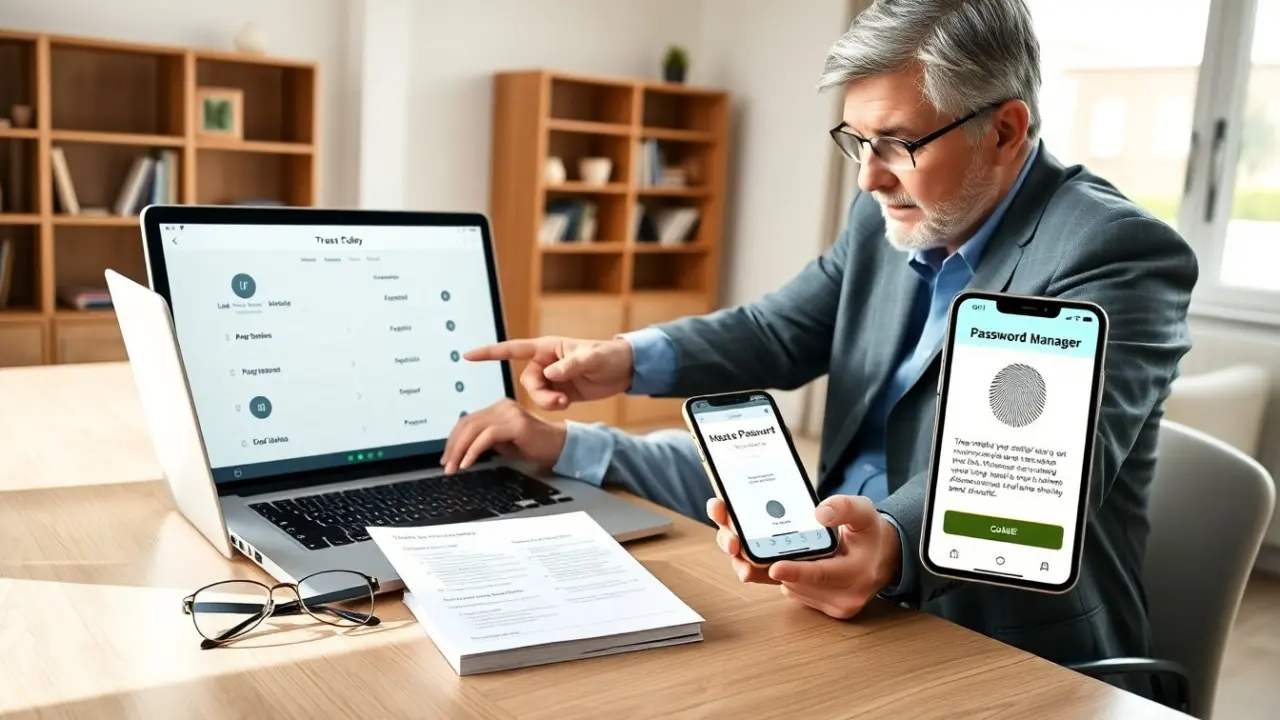
Start by choosing a password manager for seniors and creating an account. They should pick a master password that is long and memorable. They should write the master password in a secure place and store a backup copy with a trusted person. Next, install the app on the phone and the browser extension on the computer. The app will offer an import tool for old passwords from browsers or spreadsheets. They should let the app generate new strong passwords and accept them for each login. Teach the senior to use autofill for email and bank sites. Show how to unlock the app with a fingerprint or face. Set up two-factor authentication for the vault. Add a trusted contact for emergency access. For daily use, the senior should open the app, search for the site, and tap to fill. The caregiver can run periodic checks for weak or repeated passwords and update them. Schedule one review each month to update important passwords and check security alerts. Keep instructions short and place a printed quick-guide near the computer. This habit reduces frustration and keeps accounts secure.
Top Recommended Password Managers For Seniors — Short Comparison And Who Each Is Best For
- LastPass. LastPass offers an easy interface and browser autofill. It provides family plans and emergency access. It suits seniors who want a free tier and easy sharing.
- 1Password. 1Password shows large vaults and clear labels. It offers a Travel Mode and simple recovery for families. It fits seniors who want strong support and a clear mobile app.
- Dashlane. Dashlane simplifies password changes and adds a built-in VPN. It fits seniors who want extra privacy and an automated password changer.
- Bitwarden. Bitwarden provides open-source code and low cost. It suits seniors who want a budget option and transparent security.
- Keeper. Keeper offers easy sharing and secure file storage. It fits seniors who need to store medical records or legal documents alongside passwords.
How to match a senior to a product: If they want low cost, pick Bitwarden. If they want the clearest app and strong support, pick 1Password. If they want family sharing with a free tier, pick LastPass. If they want a privacy bundle, pick Dashlane. If they need secure file storage, pick Keeper. Each option offers password manager for seniors features such as autofill, biometric unlock, and family access. They should test a free trial and confirm the app meets accessibility needs before paying.