| Choice | What changes | Planning use |
|---|---|---|
| Switch location off system-wide | Apps lose location access. Navigation and ride-sharing apps may not work. Emergency services may still be able to locate the phone during 911 calls. | Suits a phone you rarely use for maps or rides. Expect to turn it back on whenever you need directions. |
| Set permission app by app | iPhone offers Never, Ask Next Time or When I Share, While Using the App, and Always. Android offers Don’t allow, Ask every time, and Allow only while using the app. | Best default for most people. Keep location for the few apps that need it and cut it for the rest. |
| Turn off Precise Location (iPhone) | The app only knows your approximate location. | Fits apps that only need your general area. |
| Leave location on all the time | Can drain the battery. | Review whether each app needs constant access. |
The options come from a guide to disabling location tracking and a report on iPhone location controls.
How to turn off location: on iPhone, switch off Location Services under Privacy & Security; on Android, switch off Location in Settings. That blocks apps, but Wi-Fi, IP addresses and cell signals can still hint at where you are.
Location is only one of the signals that can identify you. The online privacy hub explains how to stop online tracking more broadly, and the steps below cover the phone and browser side.
What changes when location is off
Turning location off removes the data apps use to place you on a map, and it also removes the features built on that data. The trade-off is the first thing to weigh before you flip the main switch.
- Location-dependent apps stop working. As this guide notes, you won’t be able to use apps that rely on your location to function. Navigation and ride-sharing apps are the obvious examples.
- Emergency calls are treated differently. Emergency services may still be able to locate your phone during 911 calls, and extreme weather alerts still arrive. A system-wide switch-off is therefore not a total block.
- Tracking does not end completely. Apps may still infer location from Wi-Fi, IP addresses or other signals, according to this location guide. Treat the switch as a strong reduction rather than an absolute guarantee.
Because the system-wide switch is so blunt, the next section helps you decide when to use it and when to use finer controls.
Choosing between all-off and per-app control
Per-app control is the better starting point for most phones, because you keep the handful of apps that genuinely need a position and remove the rest. The all-off switch suits a different situation.
- Choose the global switch when you want a clean break and can live without maps and ride apps for a while. It is also the quickest option if you cannot tell which apps are asking for location.
- Choose per-app settings when a few apps need location and the rest do not. On Android, a security guide from Malwarebytes recommends turning the permission off for any app you do not recognize.
- Choose a middle setting for apps you use but do not trust with constant access. While Using the App on iPhone, or Allow only while using the app on Android, limits access to moments when the app is open.
- Reduce precision on iPhone when an app only needs your general area. Turning off Precise Location means the app only knows your approximate location.
Turn off location on iPhone
iPhone keeps both the global switch and the per-app controls in one place: Settings > Privacy & Security > Location Services.
System-wide switch
- Open Settings and tap Privacy & Security.
- Choose Location Services.
- Switch the toggle off.
These steps follow the Cape walkthrough. Use them when you want every app cut off in one move.
One app at a time
To manage a single app, go to the same Location Services screen and choose the app you want to manage, as Yahoo Tech explains. Since iOS 14, each app has four options: Never, Ask Next Time or When I Share, While Using the App, and Always.
- Never fits apps that have no real need for your position.
- Ask Next Time or When I Share suits apps you open rarely and want to approve on each use.
- While Using the App is the practical setting for maps and weather.
- Always is the setting to question. Keep it only for an app whose job requires it.
Inside the same app screen, you can switch off Precise Location so the app sees only an approximate position.
Newer iPhone options
iOS 26.3 adds a Limit Precise Location option, but it is limited to devices with Apple’s C1 or C1X modem and requires carrier support. If your iPhone does not offer it, the per-app Precise Location switch is the control to use.
Under System Services in Location Services, you can also turn on Status Bar Icon. A black arrow then appears in the status bar whenever system services access your location, which makes background use visible.
Turn off location on Android
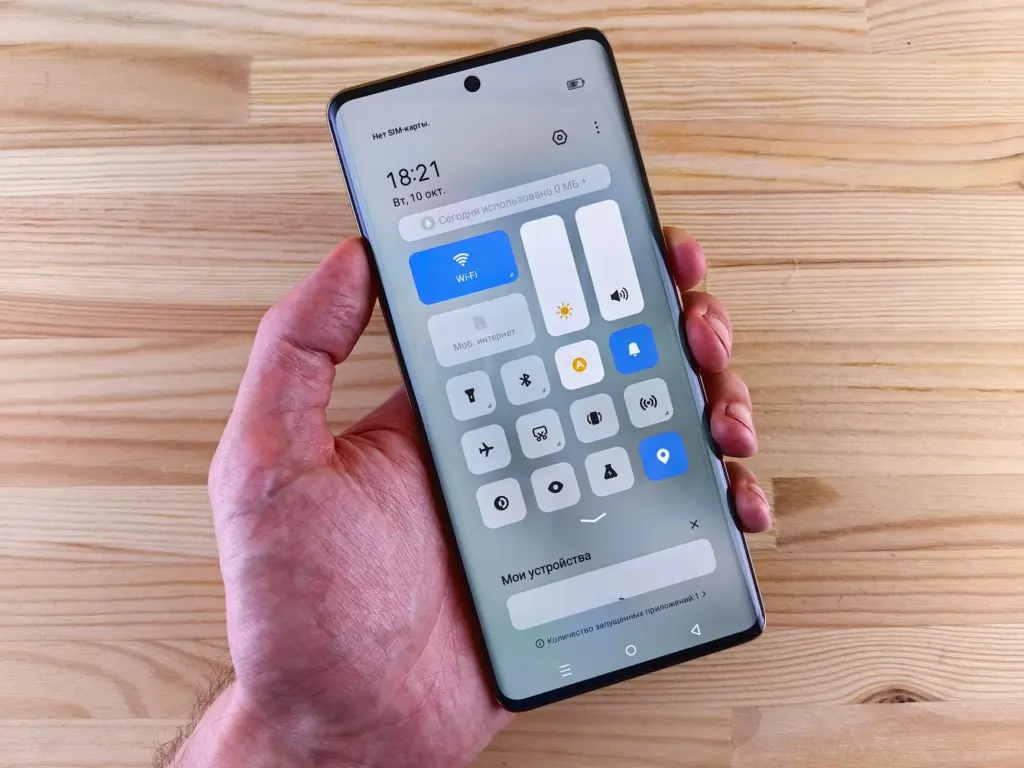
Android gives you three routes: the Settings menu, the Quick Settings tile and per-app permissions. Menu names vary between guides and devices, so use the search box in Settings if a label does not match.
Global switch and Quick Settings tile
- Open Settings and scroll to Location.
- Toggle Location off. This disables location for all apps.
For the faster route, swipe down from the top of the screen and find the location icon. If it is highlighted, tap it to turn it off, as Malwarebytes describes. You may see a warning that some apps may not function properly; confirm with Close.
Per-app permissions
To silence one app, go to Settings > Apps, select the app, then Permissions > Location. The Cape guide lists the choices as Don’t allow, Ask every time, and Allow only while using the app, and says Don’t allow completely disables location tracking for that app. Malwarebytes words the same choices as Allowed all the time, Allowed only while in use, and Not allowed, so the labels on your phone may differ slightly.
After the first pass, review the full list of apps with location permission. Anything you do not recognize should lose the permission.
Find My Device
Find My Device has its own switch, separate from the location toggle. Open Settings > Security > Find My Device and tap the switch to turn it off.
Block location in a browser
Websites ask for location through the browser, not through the operating system’s app list, so the browser needs its own setting. On Chrome for Android, open the Chrome menu, then Settings > Advanced > Site settings > Permissions > Location, and switch it off, following the same Cape guide.
That change applies to Chrome on that phone only. It will not automatically disable the option in Chrome on a computer, so repeat the process in each browser and on each device where you want sites blocked. Other browsers keep their location options in their own site or privacy settings.
When a site shows a location prompt, you decide on the spot. Declining is the safe default for sites that have no reason to know where you are, and a site-level block is easier to reverse than a lost habit of clicking Allow.
Why location can still leak
Switching off location services stops apps from asking the operating system for a position, but it does not make the phone invisible. A powered-on phone sends signals to nearby cell towers, so its location can still be tracked that way, according to Malwarebytes.
Airplane mode is not a fix either. The same guide says GPS on your phone is still working even in airplane mode. The Cubeguard article Does Airplane Mode Turn Off Location? What Happens to GPS on Your Phone in 2026 – Cubeguard goes through that in more detail.
Location is also not the only personal data in circulation. If your concern is how widely your details are exposed, How To Remove Personal Information From The Internet: A Practical 2026 Guide To Regain Your Privacy – Cubeguard covers the next step.
Frequently asked questions
What does the Android warning about apps not functioning properly mean?
It appears when you turn location off, and it says some apps may not function properly. Confirm with Close if you accept that trade-off, or leave location on and restrict individual apps instead.
Does switching the phone off stop location records?
Not entirely. Malwarebytes notes that the service provider or internet provider can show the last location once the phone is switched back on.
Does turning off Chrome location on my phone change Chrome on my computer?
No. The Android Chrome setting is per browser and per device, and it does not automatically disable the same option in desktop Chrome.
Is it worth turning location off to save battery?
It can help, since keeping location on at all times can drain the battery. Setting apps to While Using the App or Allow only while using the app keeps maps available without leaving access open constantly.