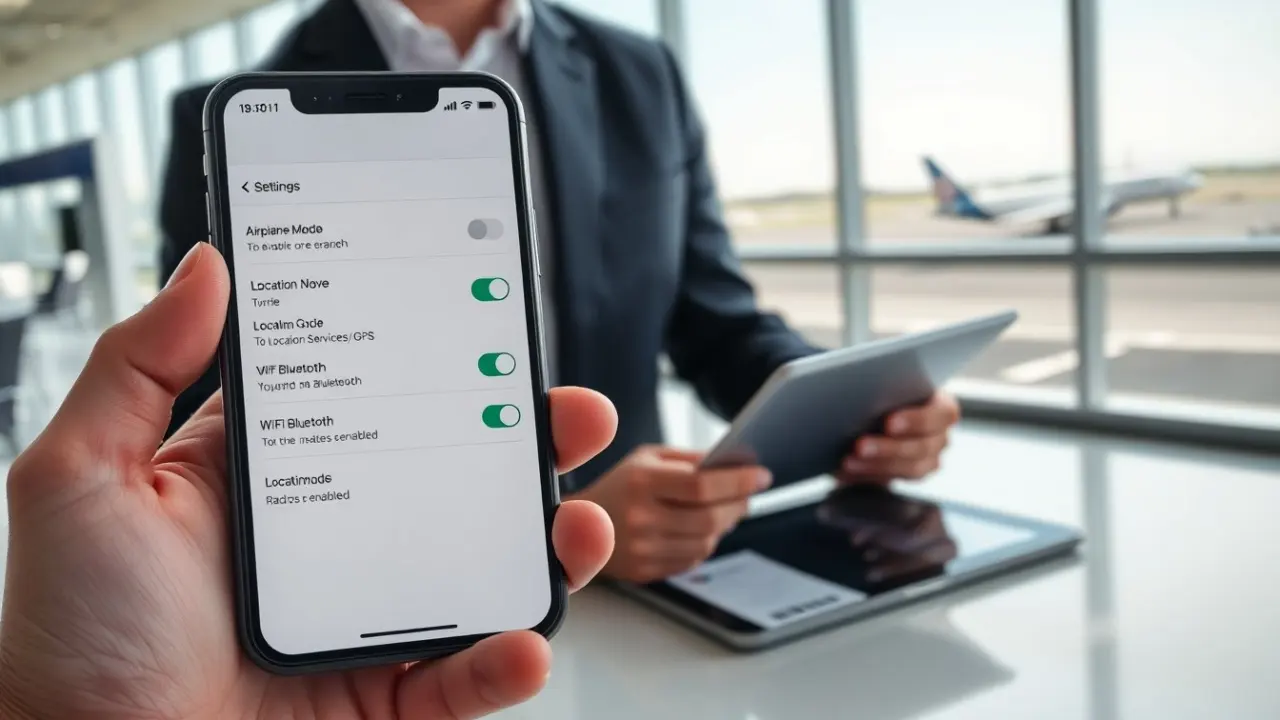
Does airplane mode turn off location is a common user question. The phrase asks whether the phone stops GPS and other location tools when it enters airplane mode. This article explains how airplane mode works, how Android and iOS behave, why location can remain available, and how to fully disable location on both platforms. It also gives practical advice for travelers and troubleshooting steps when you need to be sure your device is not reporting position.
Key Takeaways
- Airplane mode disables most radios like cellular, Wi‑Fi, and Bluetooth by default on most phones, but GPS hardware is typically left powered and available to the operating system.
- Because GPS does not require a cellular connection, apps and the system can often obtain a location fix while airplane mode is enabled; Wi‑Fi and cached positioning data can further enable location features.
- To completely stop location services you must explicitly disable Location Services (iOS) or Use Location (Android); simply toggling airplane mode is not guaranteed to cut off all location access.
- After enabling airplane mode, check and disable Wi‑Fi and Bluetooth if they were re-enabled, review per‑app location permissions, and clear or reboot to remove cached fixes if you need full privacy or to prevent tracking.
- Leaving location on while flying can be useful for offline maps, fitness tracking, or aircraft apps that rely on GPS; turning it off conserves battery and reduces the risk of unwanted tracking—always follow airline instructions and local regulations.
How Airplane Mode Works: Radio Controls, Defaults, And Exceptions
Airplane mode is a system-level setting designed to quickly cut a device’s transmitters to comply with aviation rules and to prevent interference with aircraft systems. When you enable airplane mode the operating system disables cellular radios (voice and data) and typically turns off Wi‑Fi and Bluetooth. On many devices the phone will allow you to manually re-enable Wi‑Fi or Bluetooth while remaining in airplane mode so you can use onboard Wi‑Fi or wireless headphones. NFC and other short‑range radios are commonly disabled as well, though behavior varies by make and model.
Importantly, the GPS receiver—hardware that listens to satellite signals to compute coordinates—is usually a passive receiver and does not transmit. Because it does not transmit radio signals, many device makers leave the GPS chip powered even when airplane mode is on. OEM and carrier customizations, enterprise profiles, developer options, and aviation-specific apps can create exceptions or change how radios behave. For example, some managed devices in corporate settings may keep location or connectivity features active for device management, and some airline apps may request temporary permissions for in‑flight services. The result is that airplane mode is a good first step to reduce radio activity, but it is not a guaranteed, one‑click solution to disable every location or connectivity pathway.
Does Airplane Mode Turn Off Location On Smartphones?
Airplane mode does not always turn off location. Because location determination can rely on multiple subsystems, simply switching airplane mode on may leave some location capabilities intact. How each platform treats location in airplane mode depends on the operating system version, manufacturer customizations, and user settings.
On iOS, Location Services is a central privacy control. When airplane mode is enabled, iOS typically disables cellular and data radios, but Location Services can remain enabled for apps that have permission. Users will still see location icons for apps that recently used location or that maintain background location access; GPS-based positioning can continue to work because the GPS chip is passive.
On Android, behavior is similar but can vary more across vendors and versions. Android provides a “Use location” toggle that governs whether apps and system services can access location providers, and it allows separate toggles for Wi‑Fi scanning and Bluetooth scanning (used for improving location accuracy). Some Android devices may also expose developer options or carrier features that influence whether location remains usable while airplane mode is active. In both ecosystems, apps can read the last known location from the system cache even after radios are disabled, which can give the appearance that location is still available.
Why Location May Still Be Available In Airplane Mode (GPS, Wi‑Fi, And Cached Data)
GPS operates by receiving signals from satellites and computing a position; it does not require a cellular connection to obtain a fix. Because the GPS receiver is usually a passive component that only listens, many devices keep it powered in airplane mode so apps that need location (for example, aviation instruments, offline navigation, or fitness apps) can still work.
Wi‑Fi and Bluetooth can also assist location. Even when cellular is off, the device can use nearby Wi‑Fi access point identifiers and Bluetooth beacons to refine a position if those radios are active or if the system performs background scanning. Some platforms include “Wi‑Fi scanning” and “Bluetooth scanning” options that let the OS perform network scans for location accuracy even when regular Wi‑Fi or Bluetooth appear disabled. If the user re‑enables Wi‑Fi while in airplane mode to access an in‑flight hotspot, location accuracy can improve dramatically because the OS can match visible networks with databases of known access point locations.
Cached data and the last known location also play a role. Apps can access the last fix provided by the system until a new fix is obtained. Sensor fusion—combining GPS with accelerometer, gyroscope, and magnetometer data—lets the device estimate movement between fixes without any network, so apps may continue to report relative movement or an approximate location. All of these mechanisms explain why airplane mode alone does not equate to location off.
How To Ensure Location Is Fully Disabled: Step‑By‑Step For iPhone And Android
Below are practical, step‑by‑step actions to make sure location is truly disabled. Follow these steps in sequence and verify with diagnostics where appropriate.
iPhone
- Open Settings.
- Tap Privacy > Location Services.
- Toggle Location Services off to disable all app and system access to location providers.
- Optionally, review app-by-app permissions in the same menu and change any apps set to “Always” or “While Using” to “Never” if you only want to restrict specific apps rather than all services.
- Return to Control Center and check for the location arrow icon; confirm it no longer appears when you open apps that previously accessed location.
- As an extra step, enable airplane mode, then confirm Wi‑Fi and Bluetooth are off; if they were manually re-enabled, switch them off from Control Center or Settings.
Android
- Open Settings > Location (on some devices this is under Security & location or Connections).
- Toggle “Use location” (or similar) off to prevent apps and system services from accessing location providers.
- Tap App permissions (or App-level permissions) to review and revoke location access for individual apps you don’t trust or that should not run in the background.
- Disable Wi‑Fi scanning and Bluetooth scanning if present in the location settings or under Advanced settings so the OS does not perform background scans that contribute to location accuracy.
- Enable airplane mode, then confirm Wi‑Fi and Bluetooth are still off; if necessary, turn them off via Quick Settings. Reboot the device if you want to clear some cached system state and last known location entries.
Additional steps for both systems
- Enable airplane mode to cut cellular transmissions.
- Turn Wi‑Fi and Bluetooth off if they remain on or if you re‑enabled them for in‑flight services; disable Wi‑Fi scanning and Bluetooth scanning features where available.
- Disable location profiles, enterprise device management policies, or developer-mode settings that keep GPS active. Check Mobile Device Management (MDM) settings if the phone is managed by an organization.
- Remove or power off external accessories (connected GPS loggers, smartwatches, or Bluetooth trackers) that can provide position information to the device or cloud services.
- Use airplane mode plus the explicit location toggle for the most reliable result; verify by checking app permissions and monitoring the location icon in the status bar or Control Center/Quick Settings.
Practical Scenarios: When To Keep Location On Or Turn It Off While Flying
There are several real-world situations to consider when deciding whether to keep location enabled in flight.
Keep location on when:
- You rely on offline maps (for example, hiking or transit maps downloaded to your device) that use GPS to show precise position without needing mobile data.
- You use aviation or flight‑aware apps that provide situational awareness to pilots and crew and that require GPS input to function correctly.
- You are tracking a fitness activity (like an in‑flight walk or airport run) where GPS is needed to record distance or pace and you accept the battery tradeoff.
- The airline or onboard system provides a Wi‑Fi service and you want better location accuracy from the combination of GPS and Wi‑Fi.
Turn location off when:
- You want to maximize battery life—GPS and related sensors consume power even if no network is available.
- You need to reduce the chance of location data being recorded or shared for privacy reasons (for example, when crossing borders or in sensitive locations).
- The crew or airline has explicitly asked passengers to disable location features or radios during specific phases of flight.
- Your device is managed by an organization and you want to ensure it cannot be remotely located while in airplane mode for privacy or security reasons.
Quick practical tips: enable airplane mode at gate or on boarding, re‑enable Wi‑Fi only when instructed or when you need the onboard network, and explicitly turn off Location Services if you require complete location silence. If you are unsure whether an app has recently accessed location, check the system privacy dashboards (iOS Privacy reports or Android Permission usage) to see which apps used location and when. These checks help you balance utility, battery life, and privacy while complying with airline requirements.